
Compliance Overview
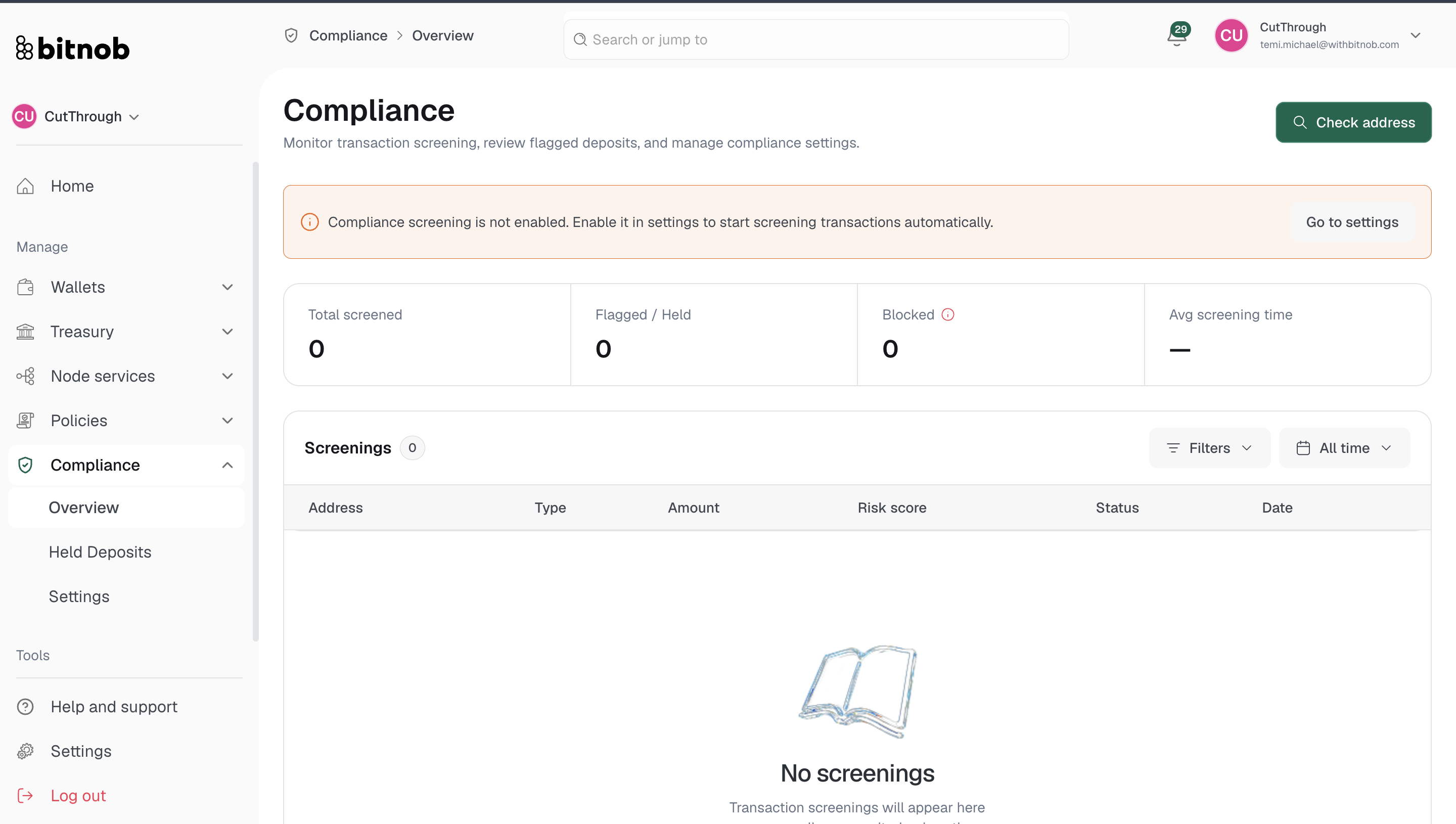
The Compliance Overview is your central dashboard for monitoring all screening activity across your organization — giving you a live snapshot of how transactions are being evaluated and flagged.
What you'll see
At the top of the page, four summary cards track your compliance activity:
Total Screened — The total number of transactions that have been screened
Flagged / Held — Transactions that were flagged for review or held by a compliance rule
Blocked — Transactions that were blocked by a compliance policy
Avg Screening Time — The average time it takes to complete a screening
Below the summary cards, Recent Screenings shows your latest screening activity at a glance. Click View all to go to the full Screenings page.
Enabling compliance screening
If compliance screening has not been enabled yet, a banner will appear at the top of the overview page prompting you to go to Settings. Screening must be enabled before transactions are screened automatically. Click Go to settings from the banner or navigate to Compliance > Settings to configure it.
A Check Address button is also available at the top of the page for manual one-off address screenings at any time, even before automated screening is enabled.
Related articles