
Treasury Automations: Setting up Rules
Treasury Automations let you define rules that move funds automatically based on balances, events, or schedules. Reducing manual work across your liquidity operations.
How it works
Automation rules follow a three-step logic:
Choose a trigger — Decide when the rule should run, for example when a balance drops below a set amount or on a schedule
Add conditions — Set extra checks like asset type or threshold amount to control when the rule fires
Define an action — Automatically sweep, refill, or schedule transfers across wallets, exchanges, and cash accounts
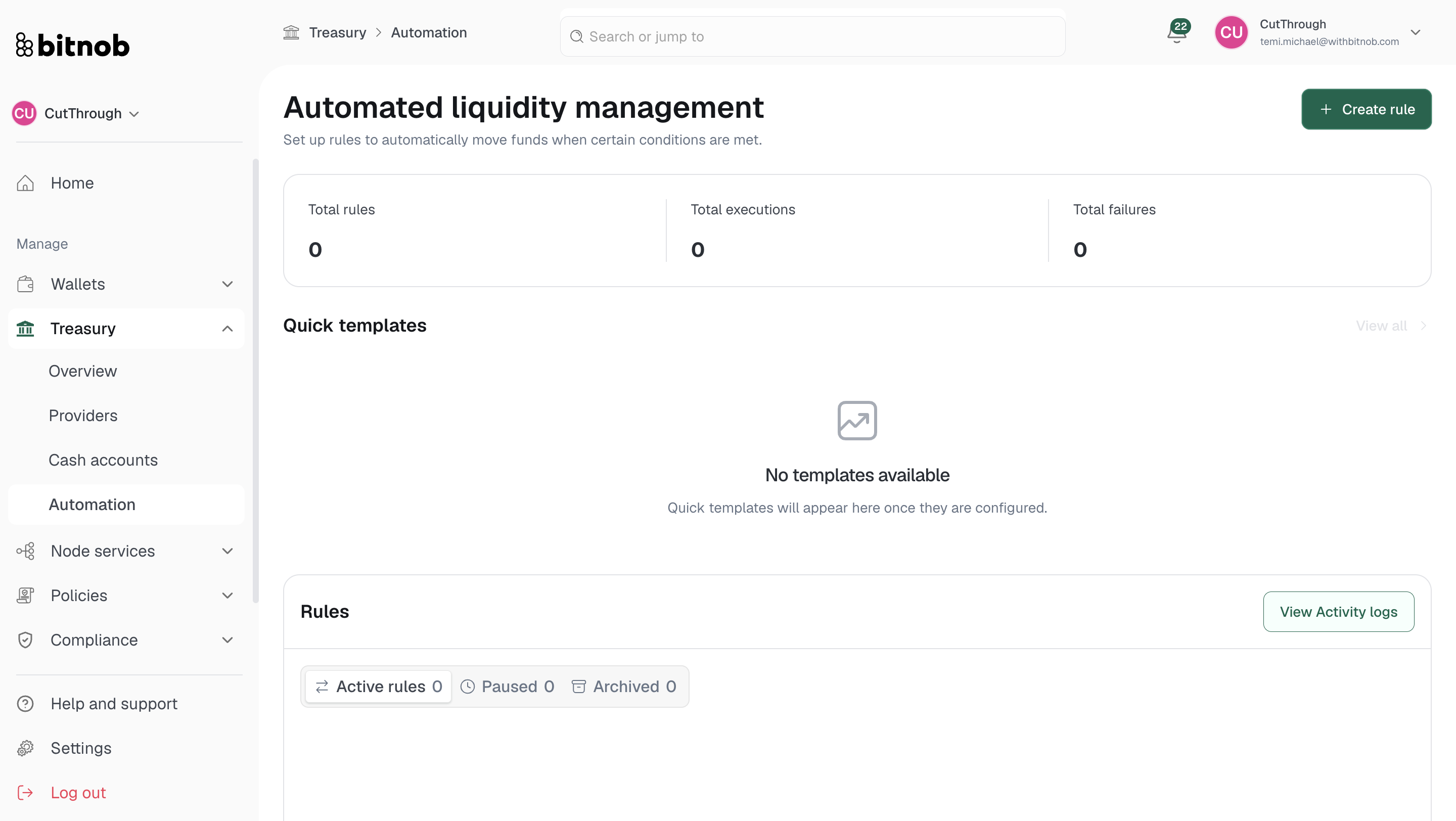
What you'll see on the Automation page
The Automation overview displays:
Total rules — Number of rules configured
Total executions — How many times your rules have run
Total failures — How many executions did not complete successfully
Rules are organized into three tabs — Active, Paused, and Archived. Activity logs are also accessible from this page to review execution history.
Creating a rule
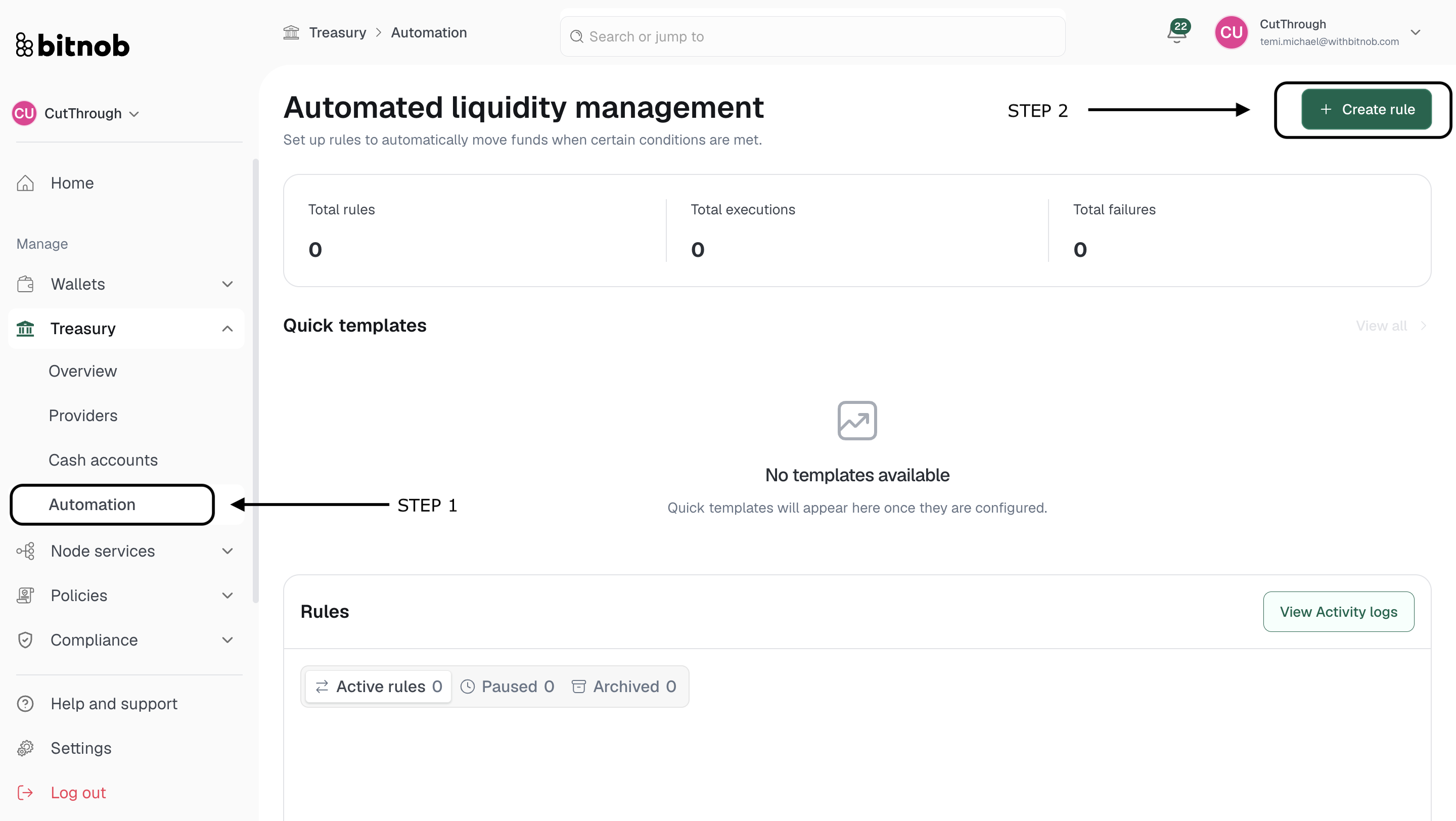
Navigate to Treasury > Automation from the left sidebar
Click + Create rule
Enter a Rule name
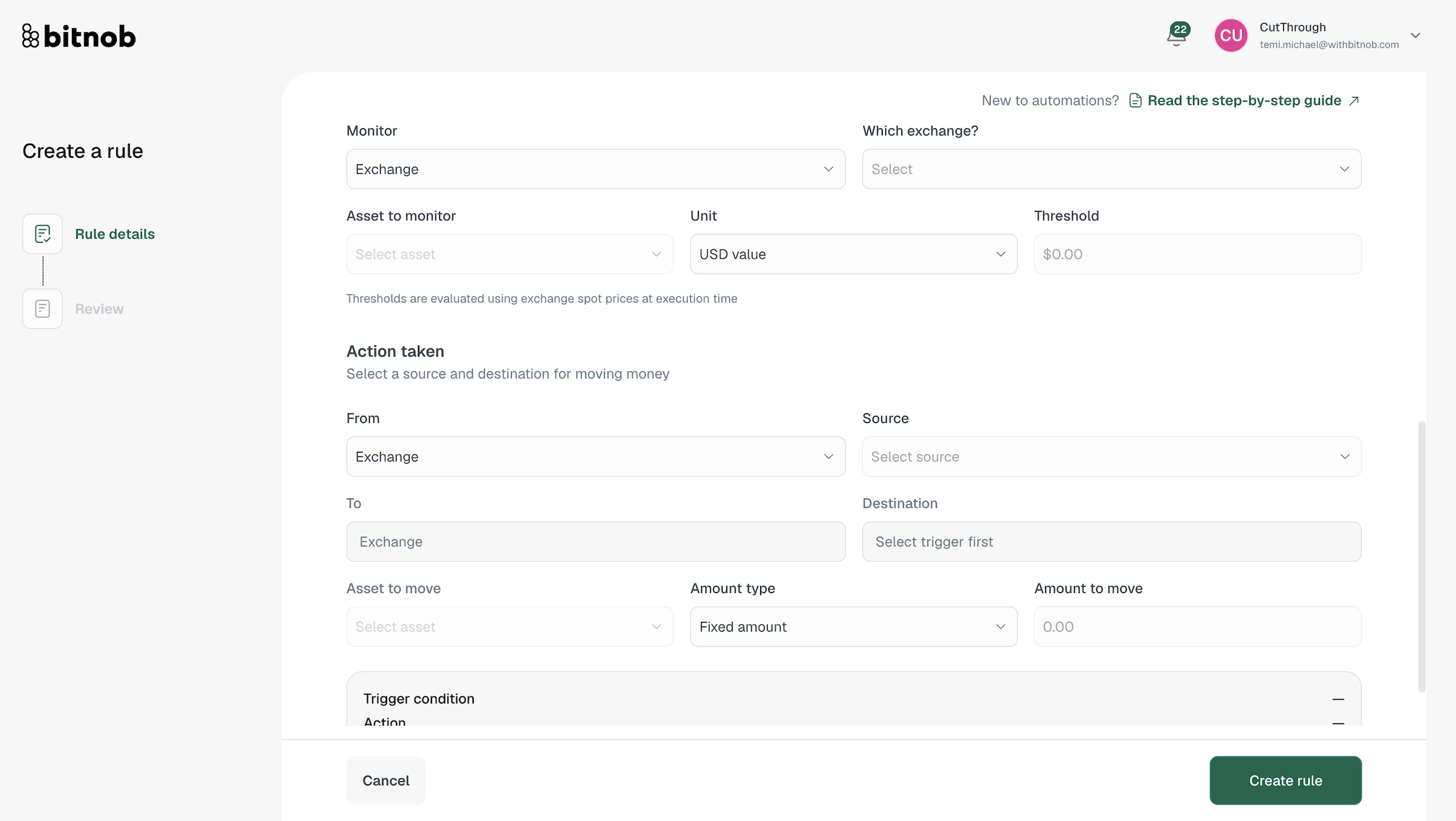
Add a description for what this rule does
Toggle Require approval before each execution if you want every automated run to be queued for manual approval before funds move — this requires root quorum to be active on your account
Select a Trigger condition — this determines when the rule will run [Screenshot]
Add your conditions to control when the rule fires
Define the action to be taken when conditions are met
Click Create rule
Note: If you enable the approval requirement, every automation run will appear in Policies > Approvals before funds move. Rule setup changes may also require separate approval when quorum is enabled.
Related articles