
Card Transactions
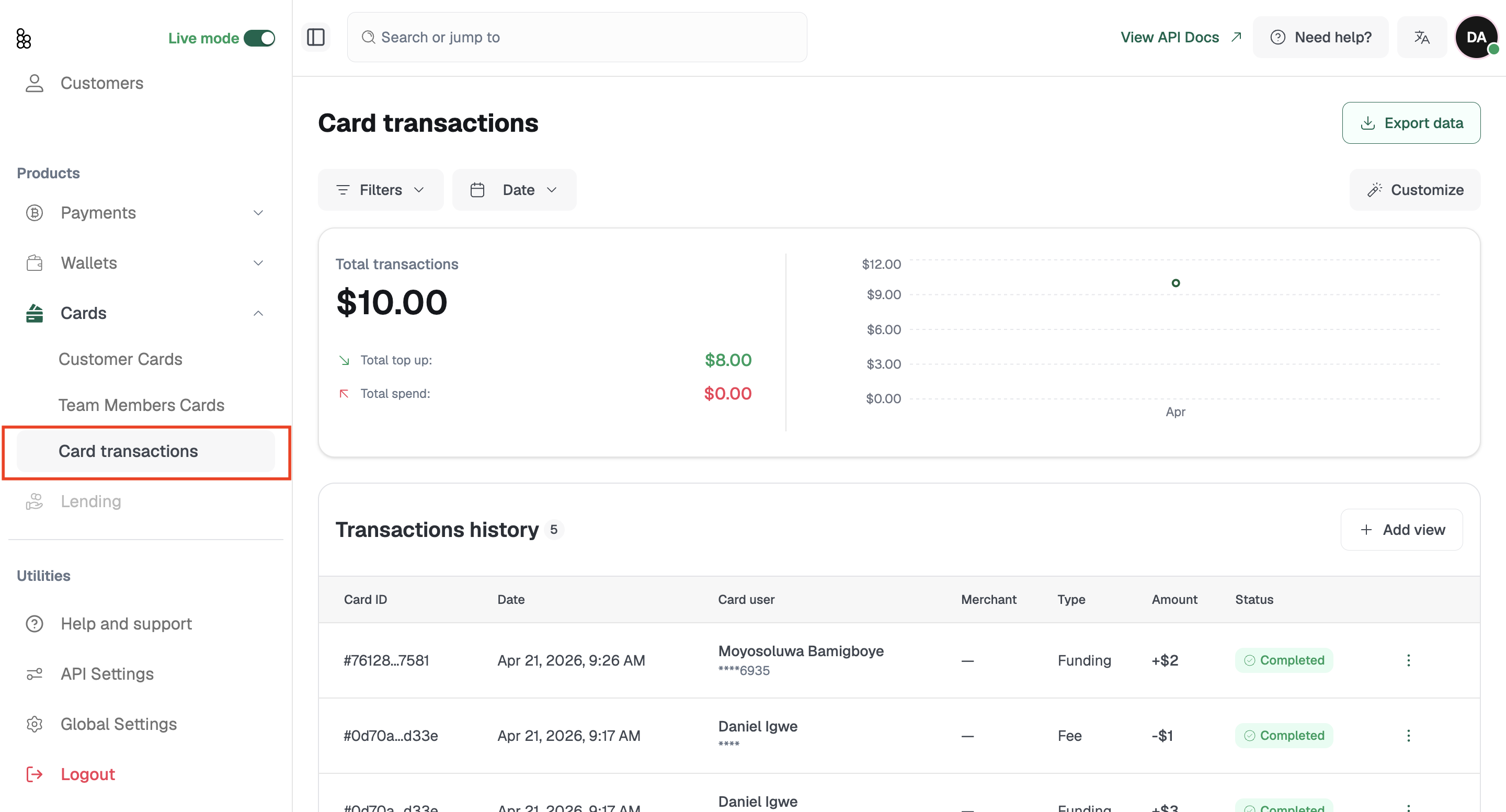
The Card Transactions page gives you a single view of every transaction across all cards on your account, both customer cards and team member cards. You will find it under Cards in the sidebar.
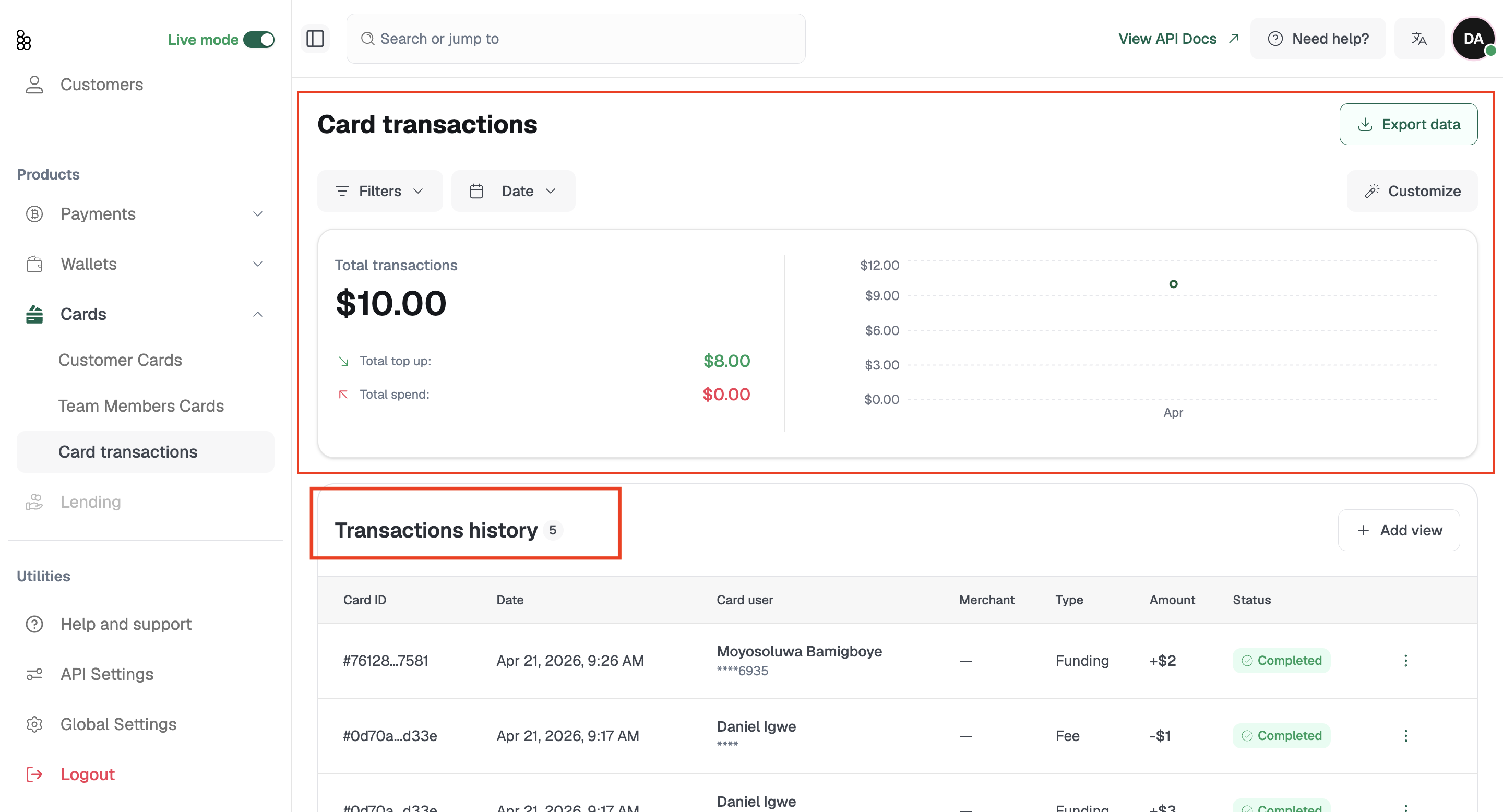
At the top of the page you will see a summary of your total transactions value, total top-up amount, and total spend, alongside a chart showing transaction activity over time.
Below that, the Transactions history table lists every individual card transaction with the following columns by default: Card ID, Date, Card user, Merchant, Type, Amount, and Status.
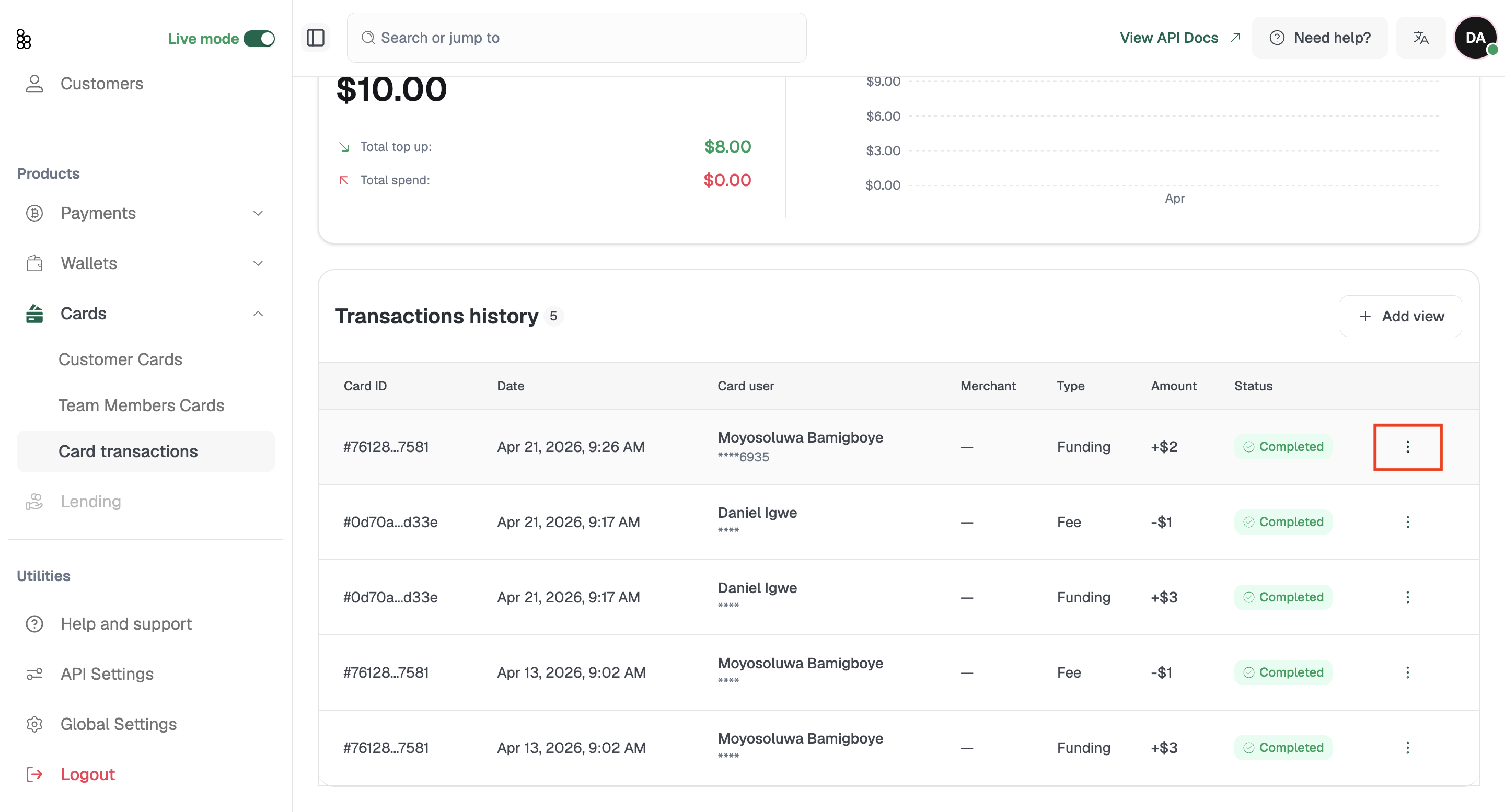
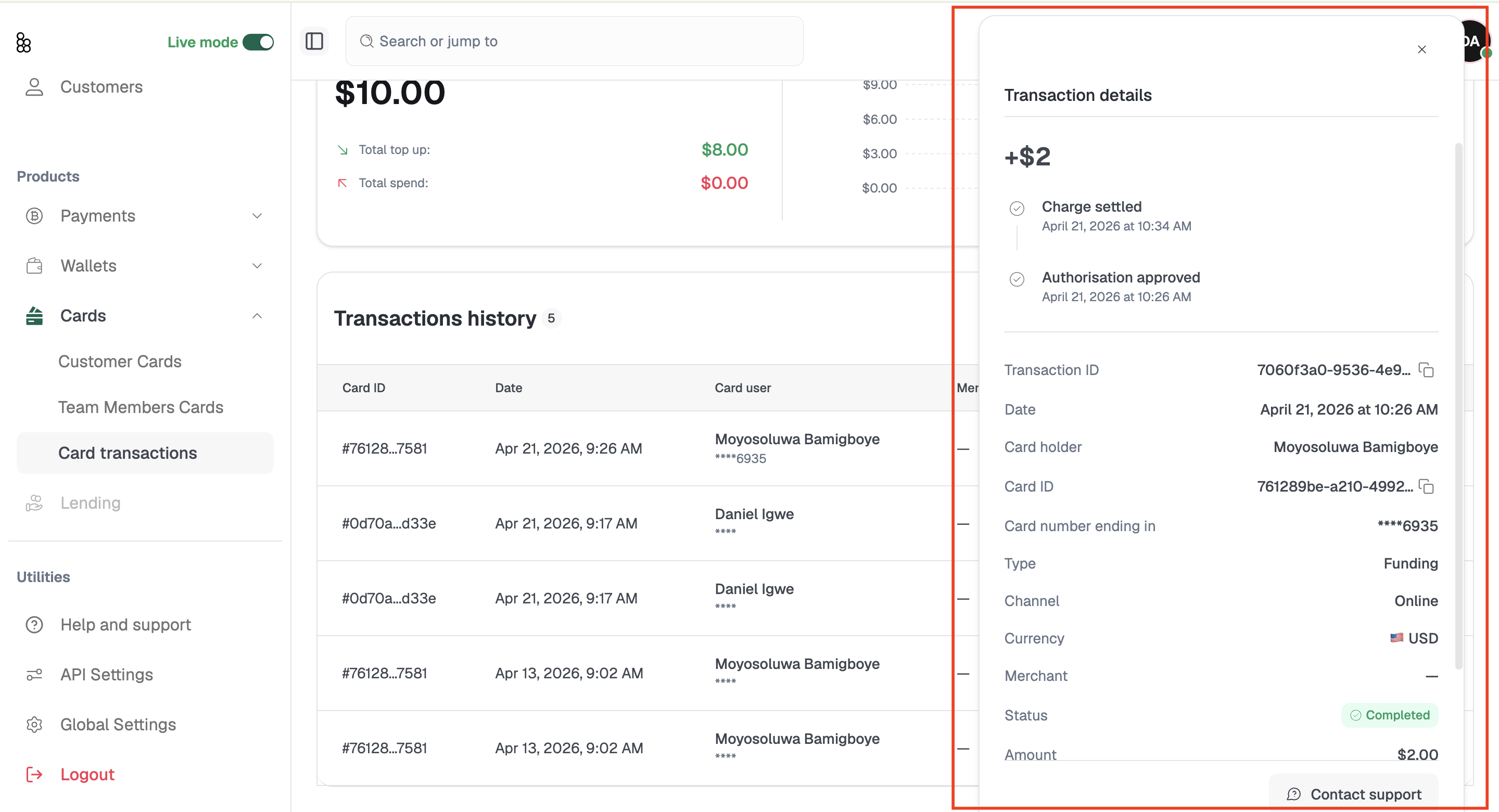
To view the full details of any transaction, click on the row. A panel opens on the right showing the full breakdown including the Transaction ID, cardholder, card number, type, channel, currency, merchant, status, amount, and a timeline showing when the authorisation was approved and when the charge was settled.
To customise what you see in the table, click Customize in the top right. You can toggle any of the following columns on or off from Filters: Card ID, Date, Card user, Merchant, Type, Channel, Amount, and Status. This lets you build the exact view your team needs.
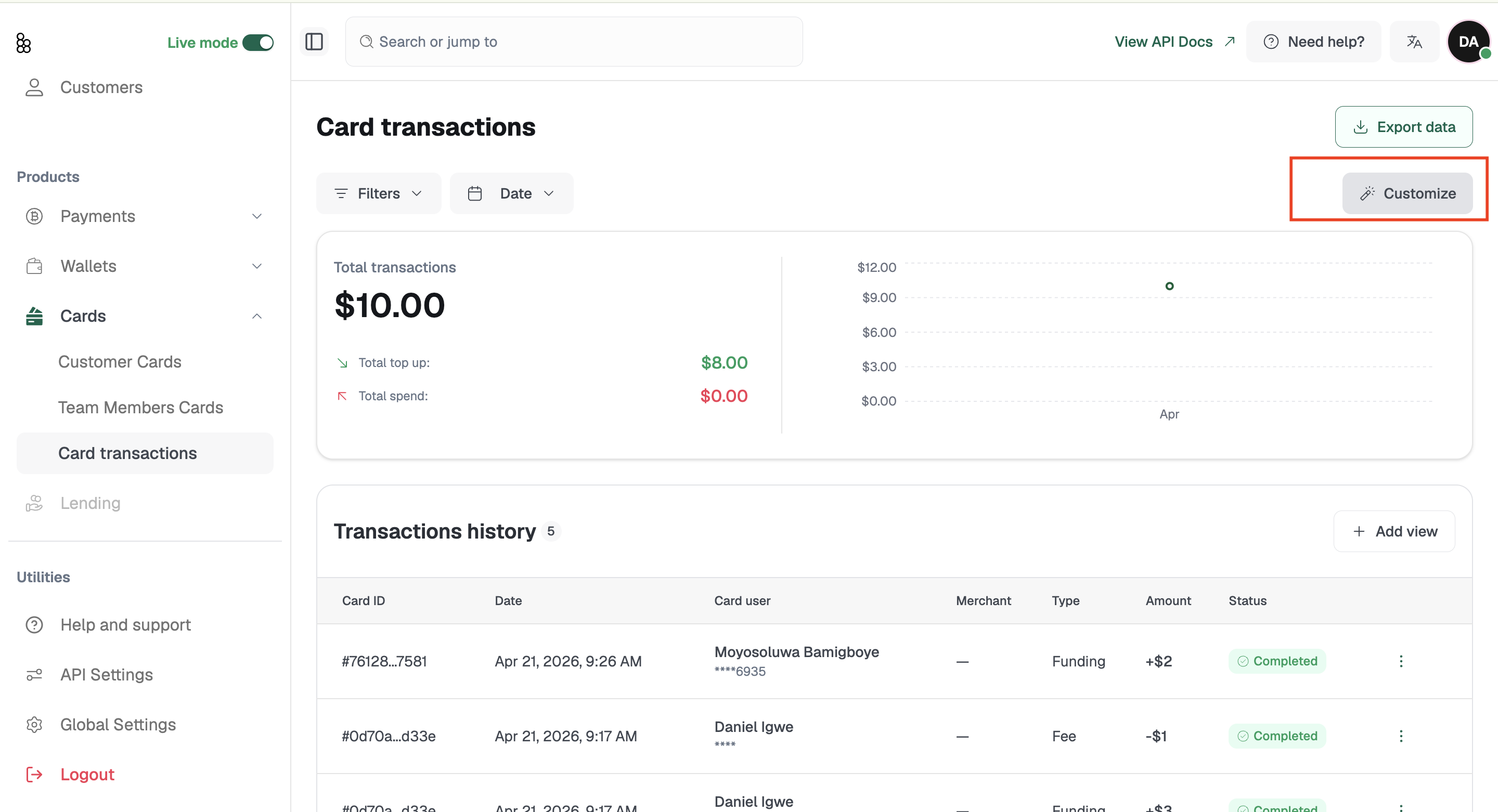
Use Filters to narrow down by specific criteria, Date to set a date range, and Add view to save a custom filtered view you can return to at any time. Click Export data to download your transaction history.
Related articles: