
Team Members Card
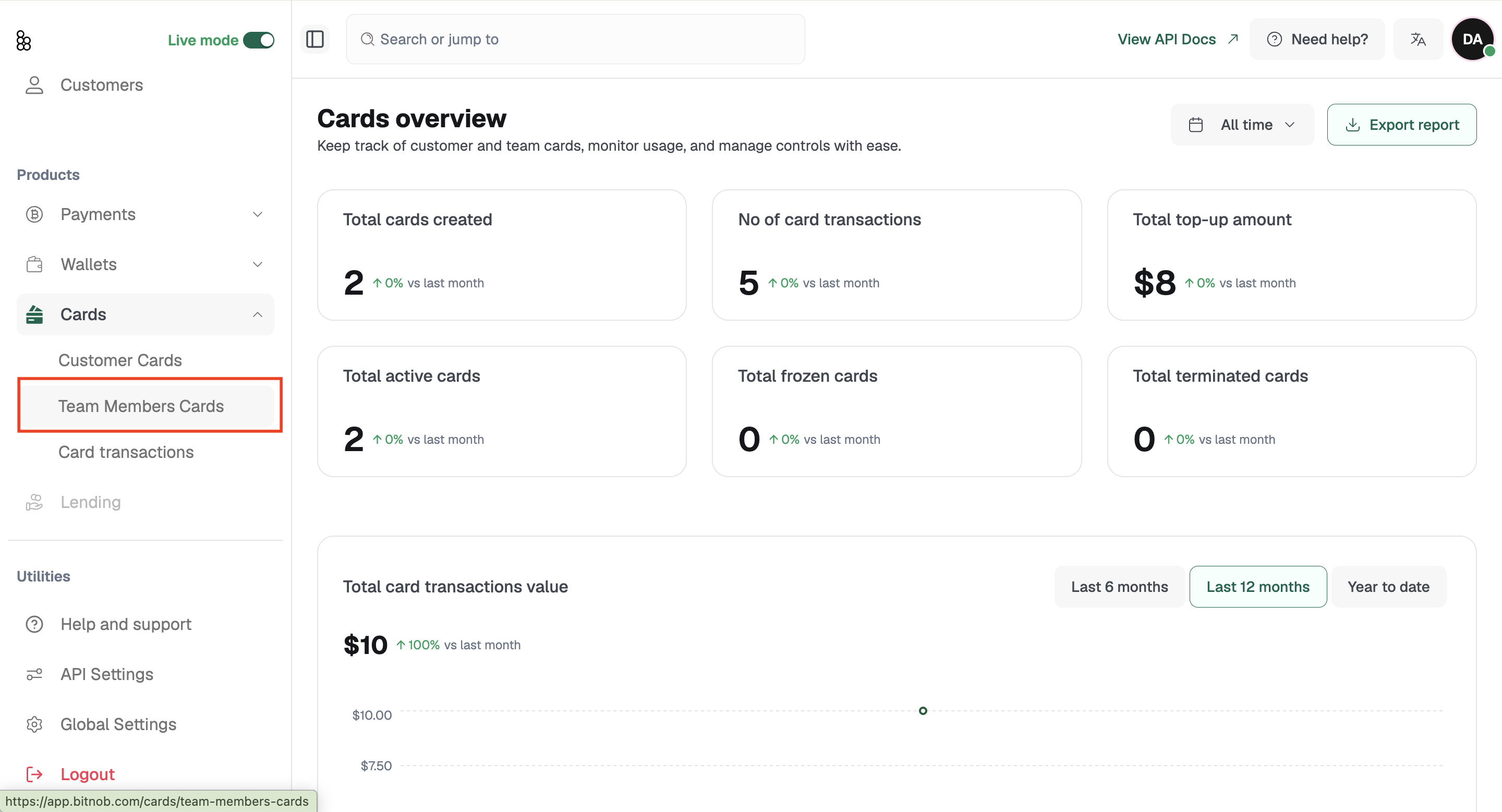
Team Members Cards are cards you create for your internal team to manage business expenses directly from the dashboard. You can set spending limits, monitor usage, and control each card in real time. This section is accessible from Cards in the left sidebar under Team Members Cards.
The creation process follows the same flow as Customer Cards with two key differences. First, you select the cardholder from your existing team members rather than entering a new customer. Second, you can optionally add a nickname to the card for easy identification. Only Standard cards can be created for team members. Single-use cards are not available in this section.
How to create a team member card:
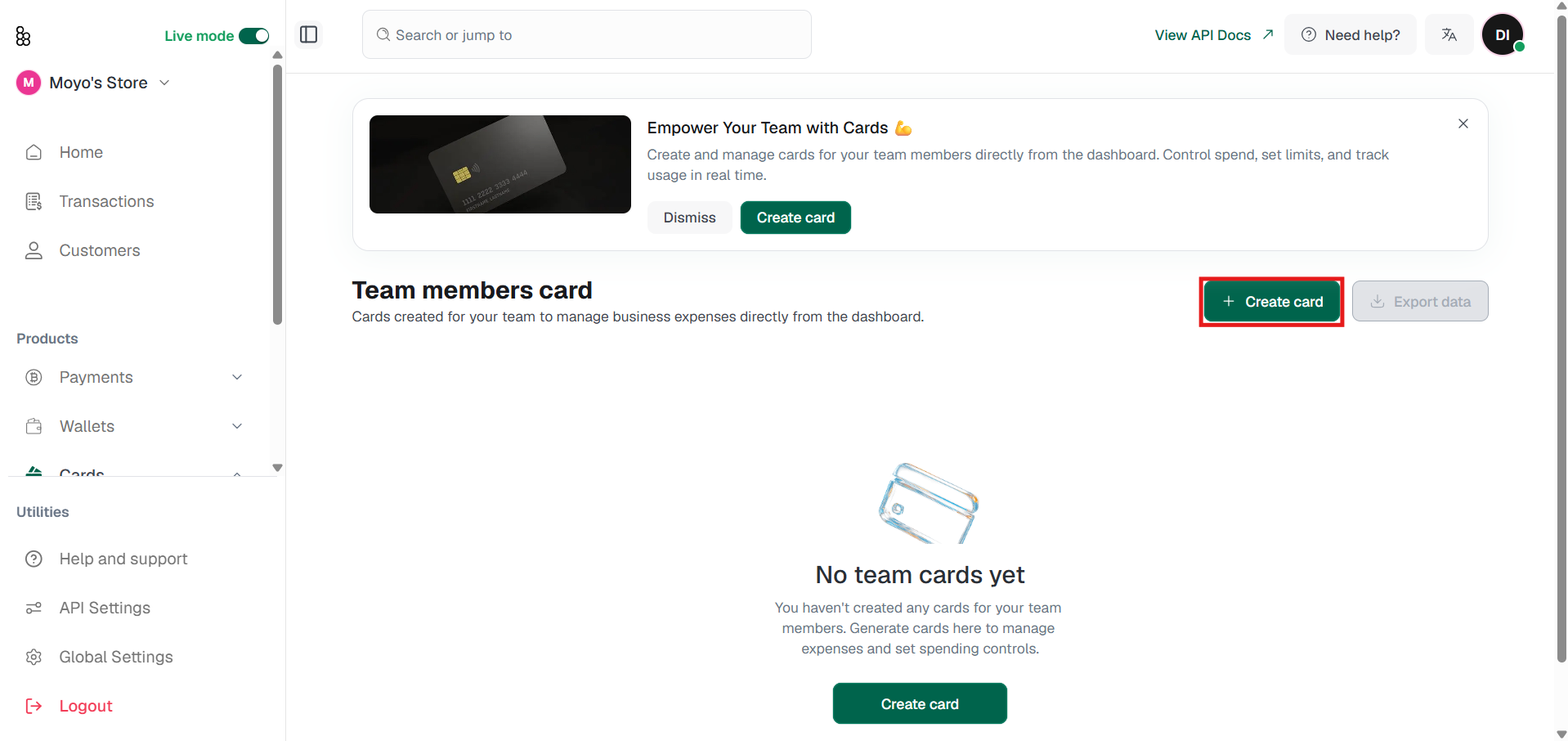
Go to Cards in the sidebar and click Team Members Cards, then click Create card.
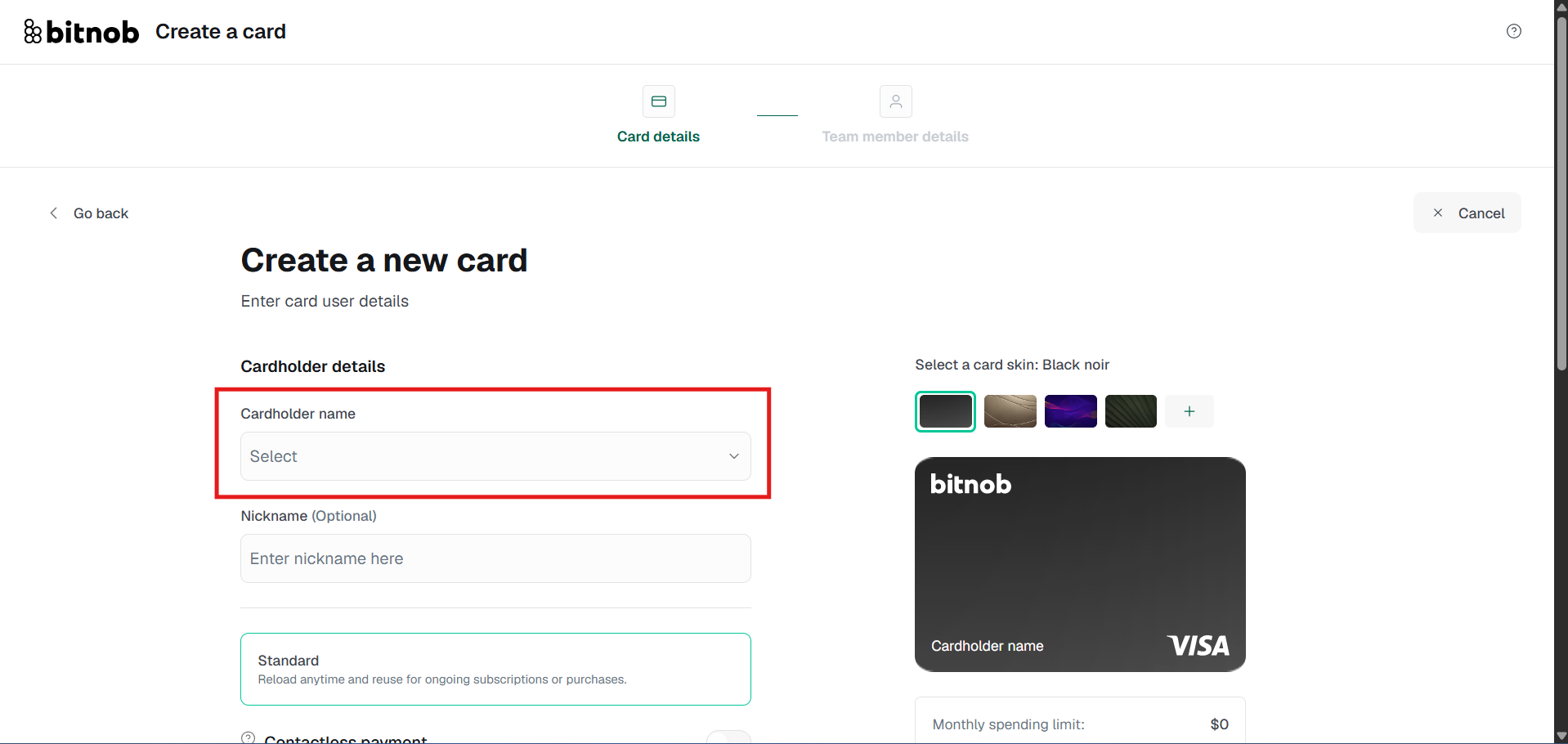
Select the cardholder name from the dropdown. This must be an existing team member on your account.
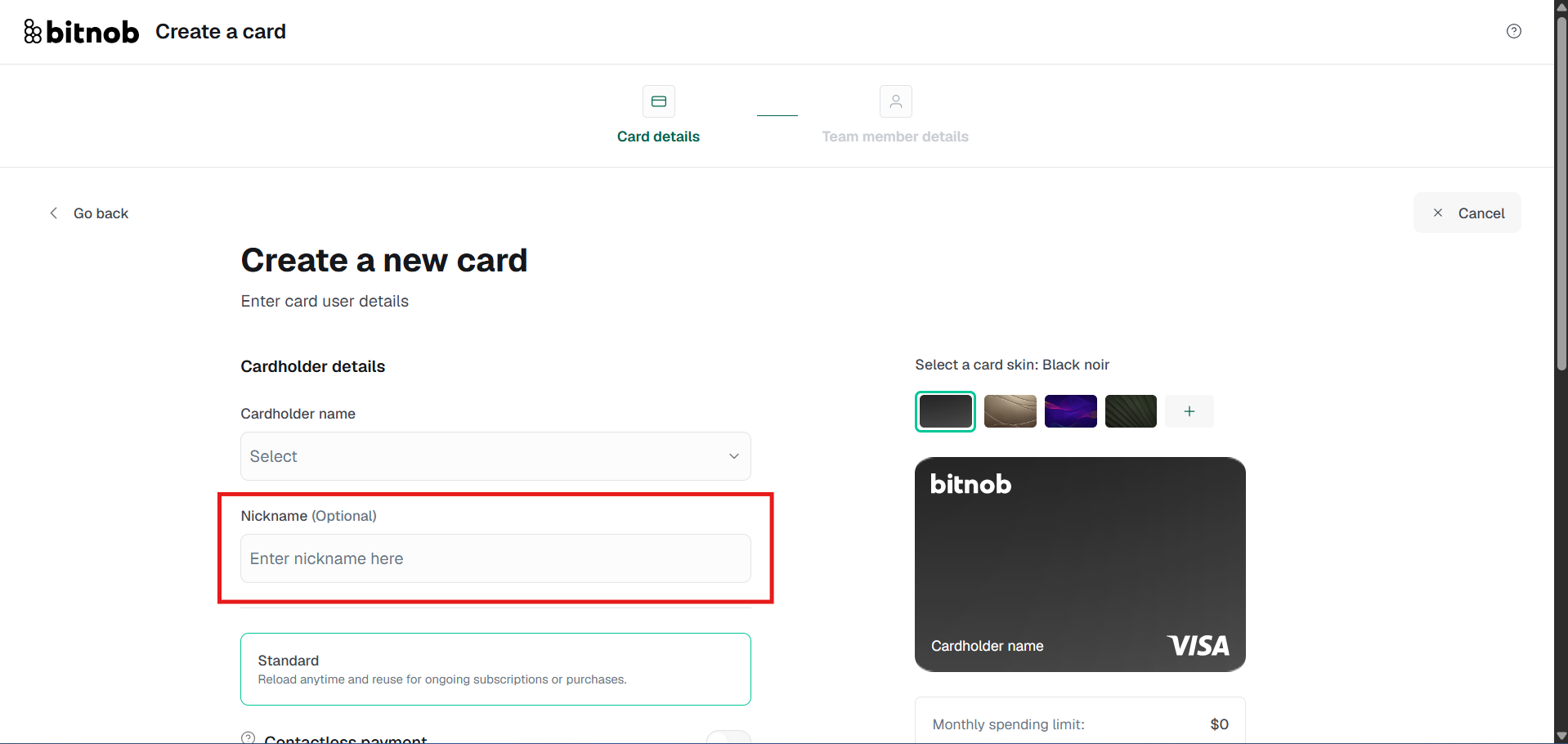
Optionally enter a nickname for the card.
Standard is the only available card type. Optionally toggle on Contactless payment for tap-to-pay support.
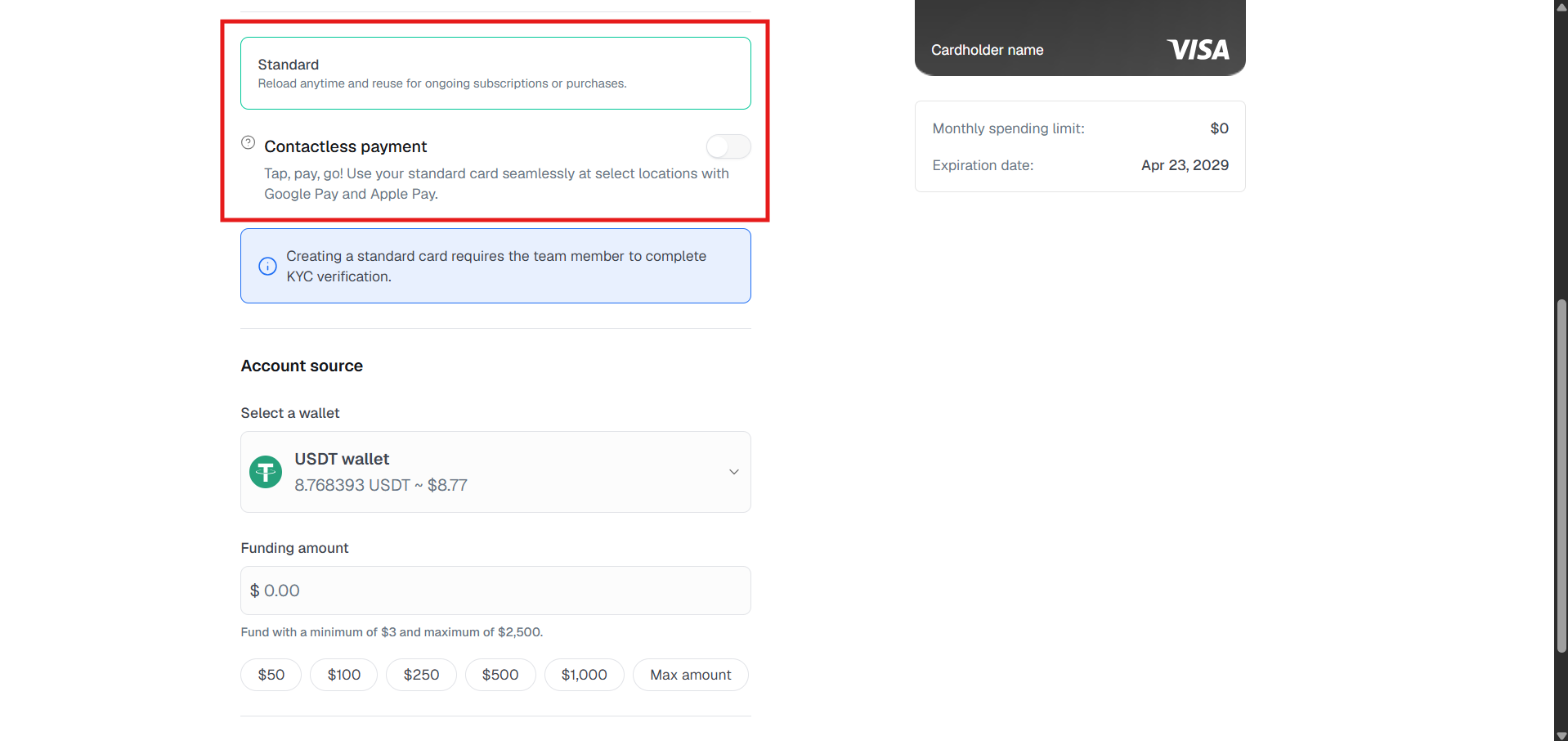
Select your funding wallet and enter an amount. Minimum is $3, maximum is $2,500.
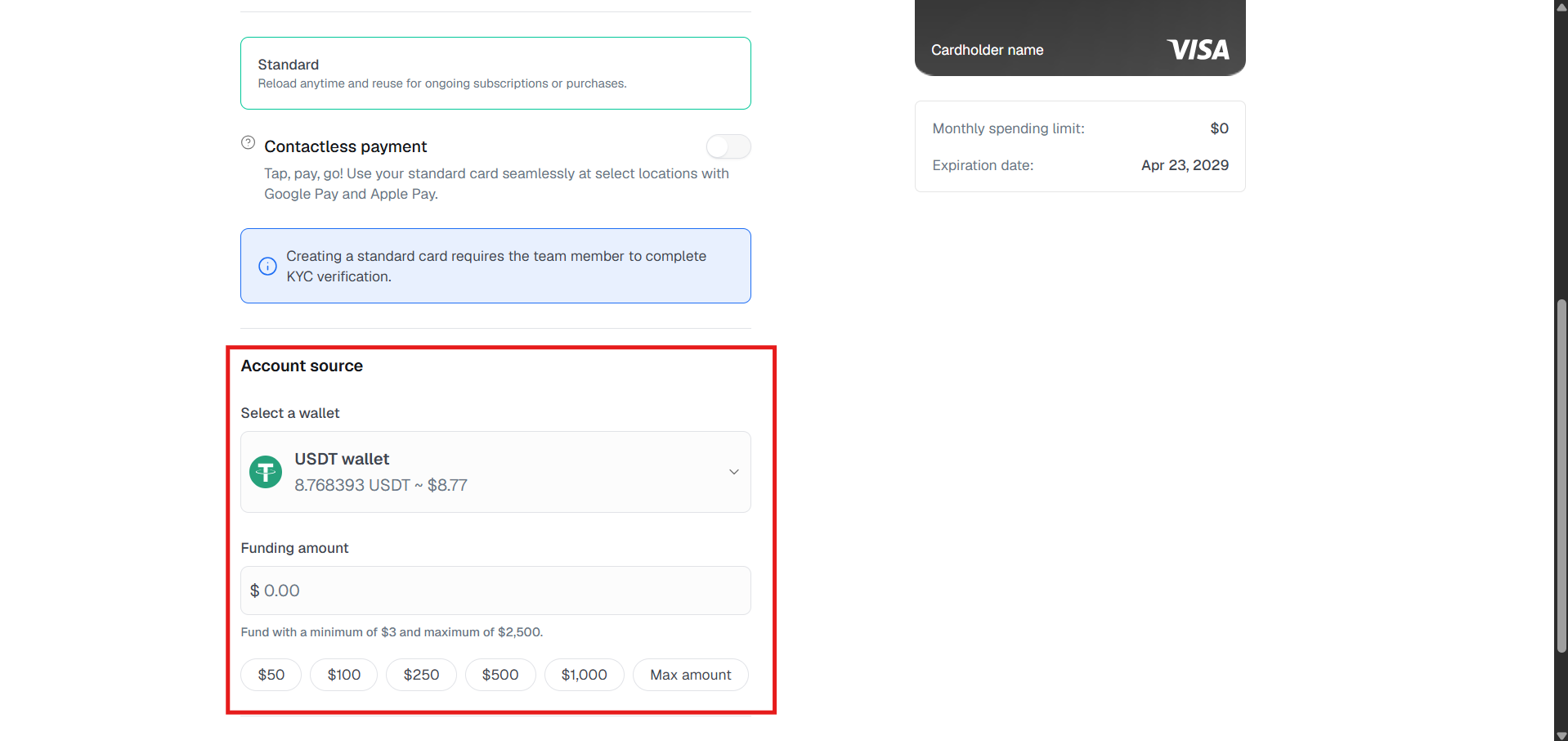
Optionally set a spending limit or custom expiration date under Advanced card controls.
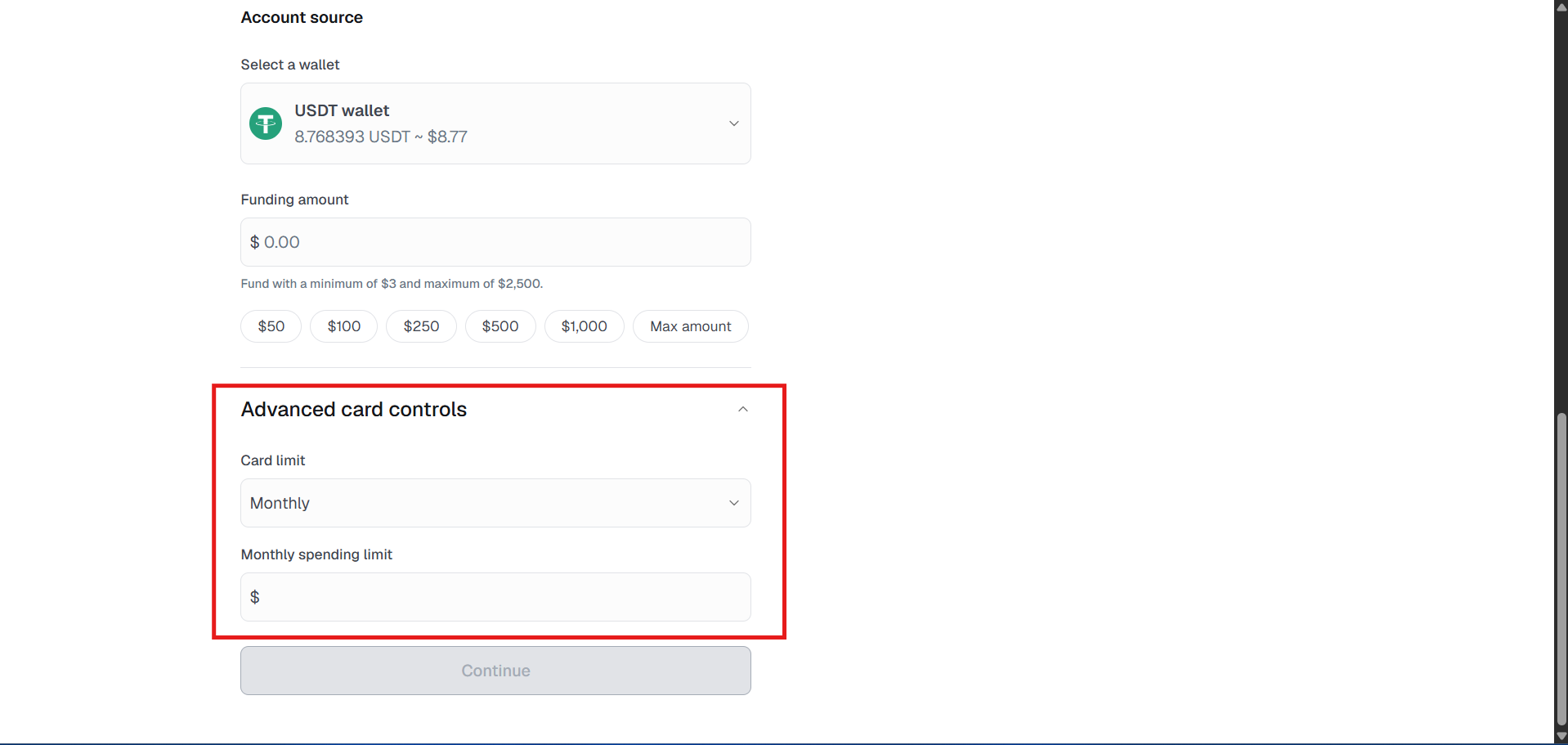
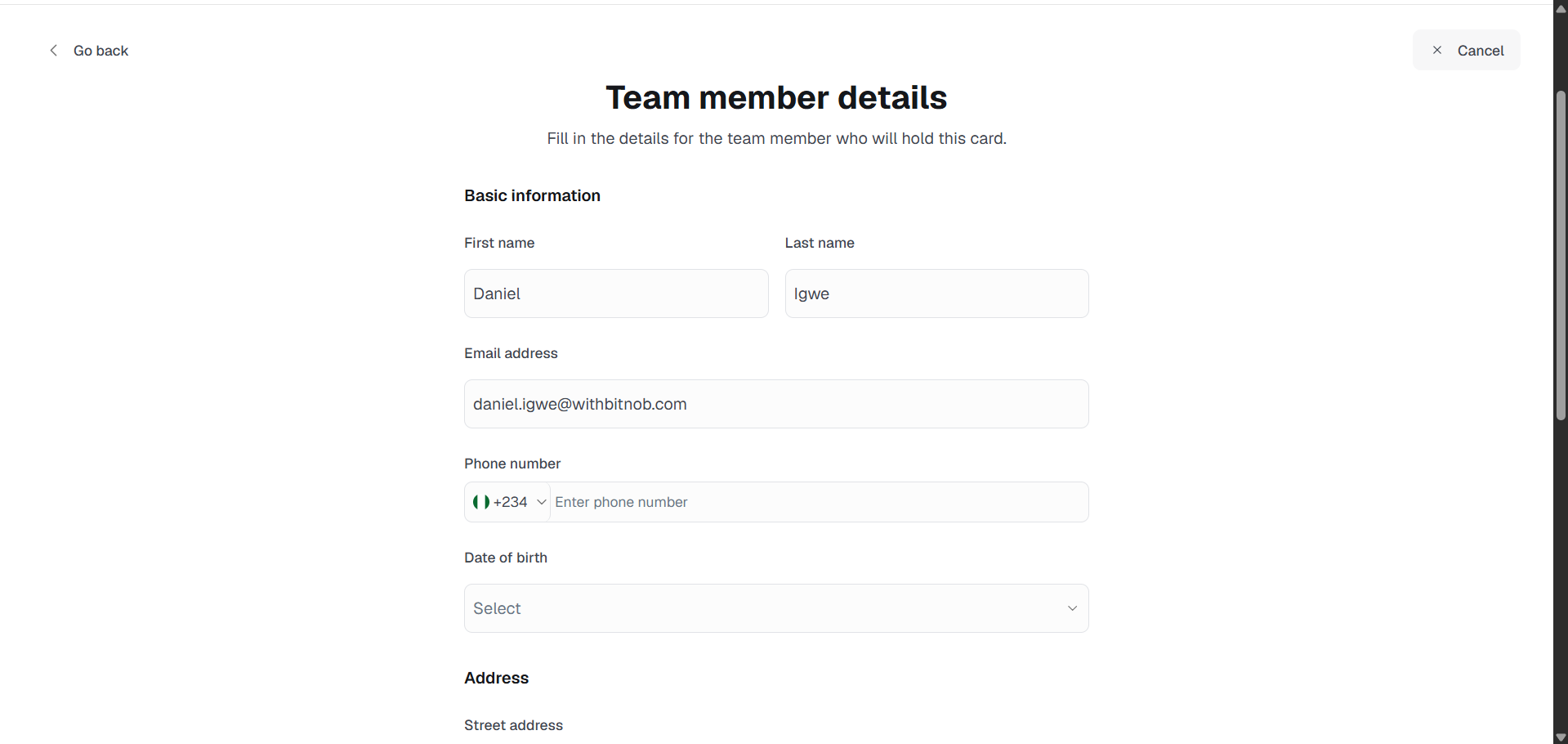
Click Continue and complete the team member's KYC details including name, email, phone, date of birth, address, and identity information.
Submit and verify with 2FA to complete card creation.
Note: The team member will need to complete KYC verification before the card can be activated.
All management actions including freezing, unfreezing, topping up, and terminating a team member card follow the same process as Customer Cards.
Related articles: