
How to Secure Your Account
All your account data on Bitnob is protected with 256-bit encryption. The platform runs behind firewalls and intrusion detection systems and undergoes regular third-party security audits. That said, the most impactful security steps are the ones you configure yourself.
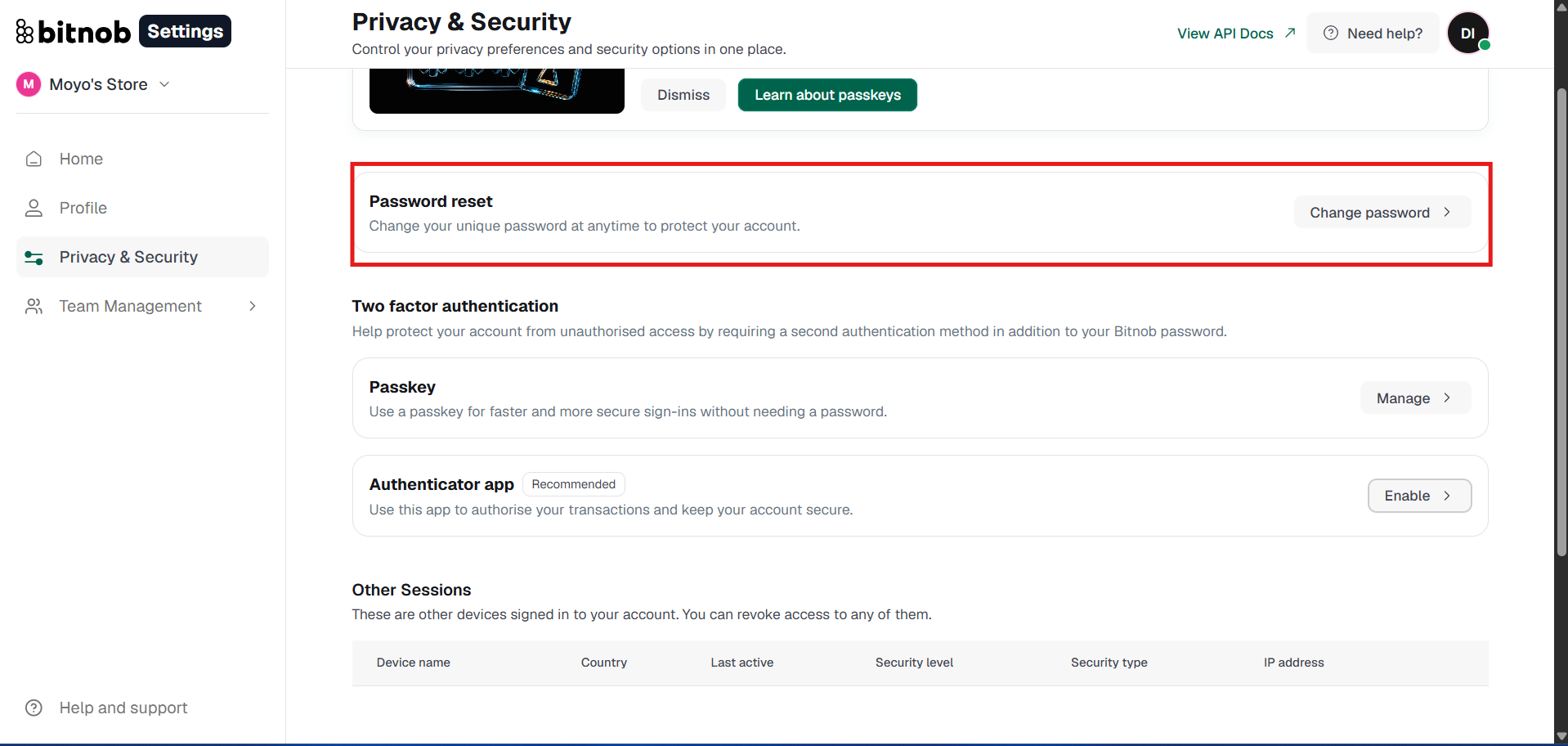
All security settings live under Privacy and Security in the Settings sidebar.
Step 1: Enable Two-Factor Authentication
Two-factor authentication (2FA) is the single most important security action you can take. Even if someone gets hold of your password, they can't access your account without your physical authentication device.
Don't wait on this one. Set up 2FA before your first transaction. Accounts without it are significantly more vulnerable regardless of password strength.
Compatible apps: Google Authenticator, Zamry, and Authy: both free on the App Store and Google Play.
To enable 2FA:
Go to Privacy and Security.
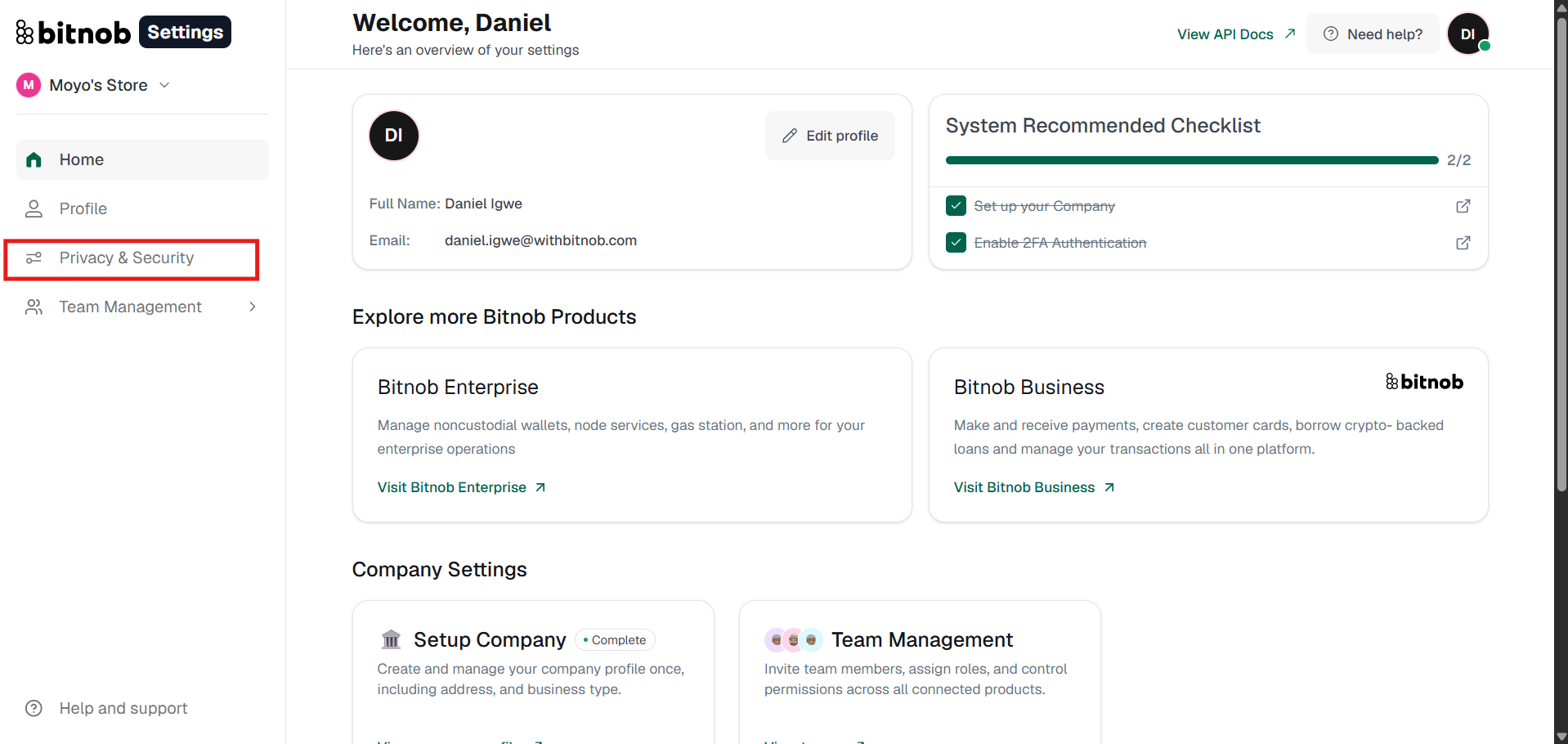
Select Two-Factor Authentication.
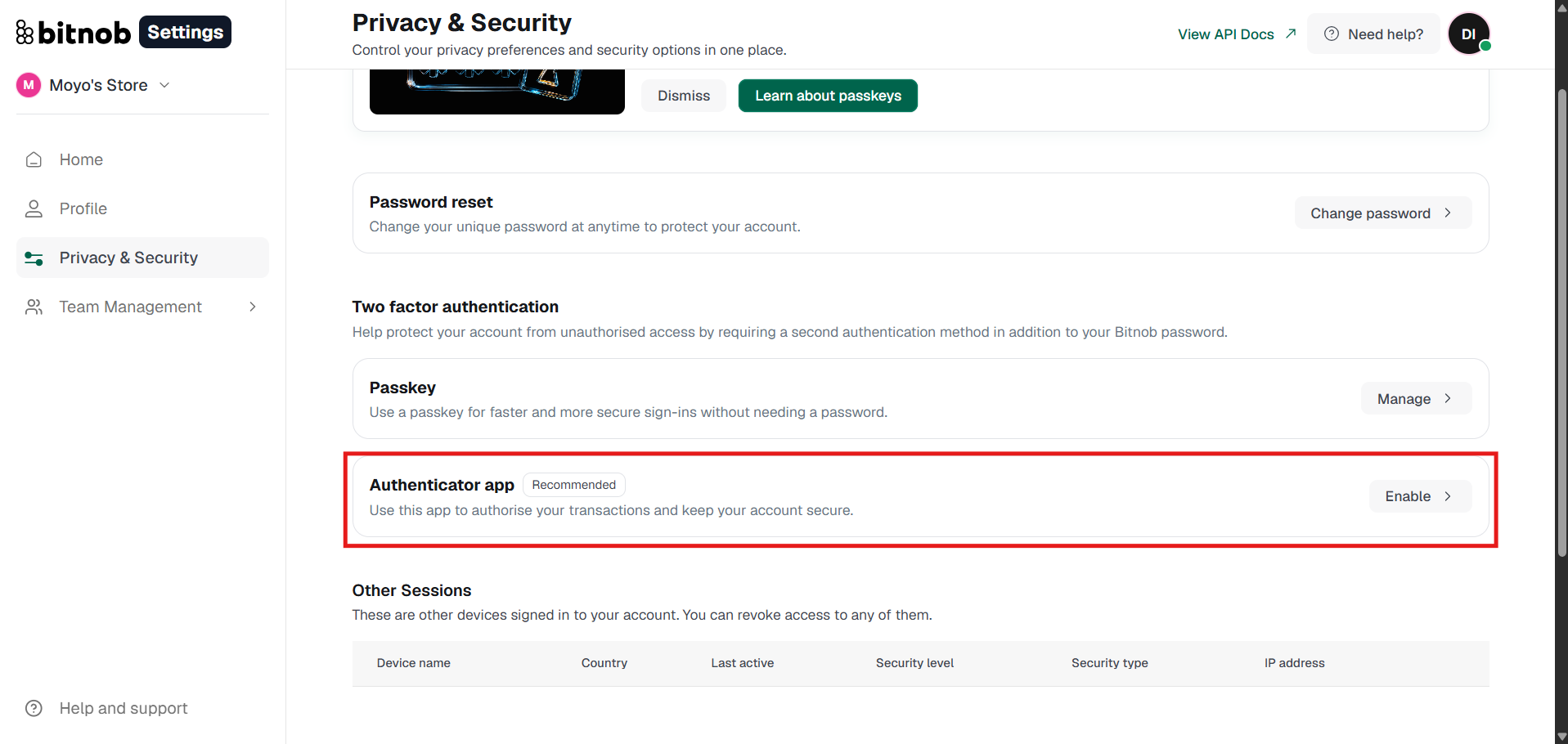
Scan the QR code with your authenticator app.
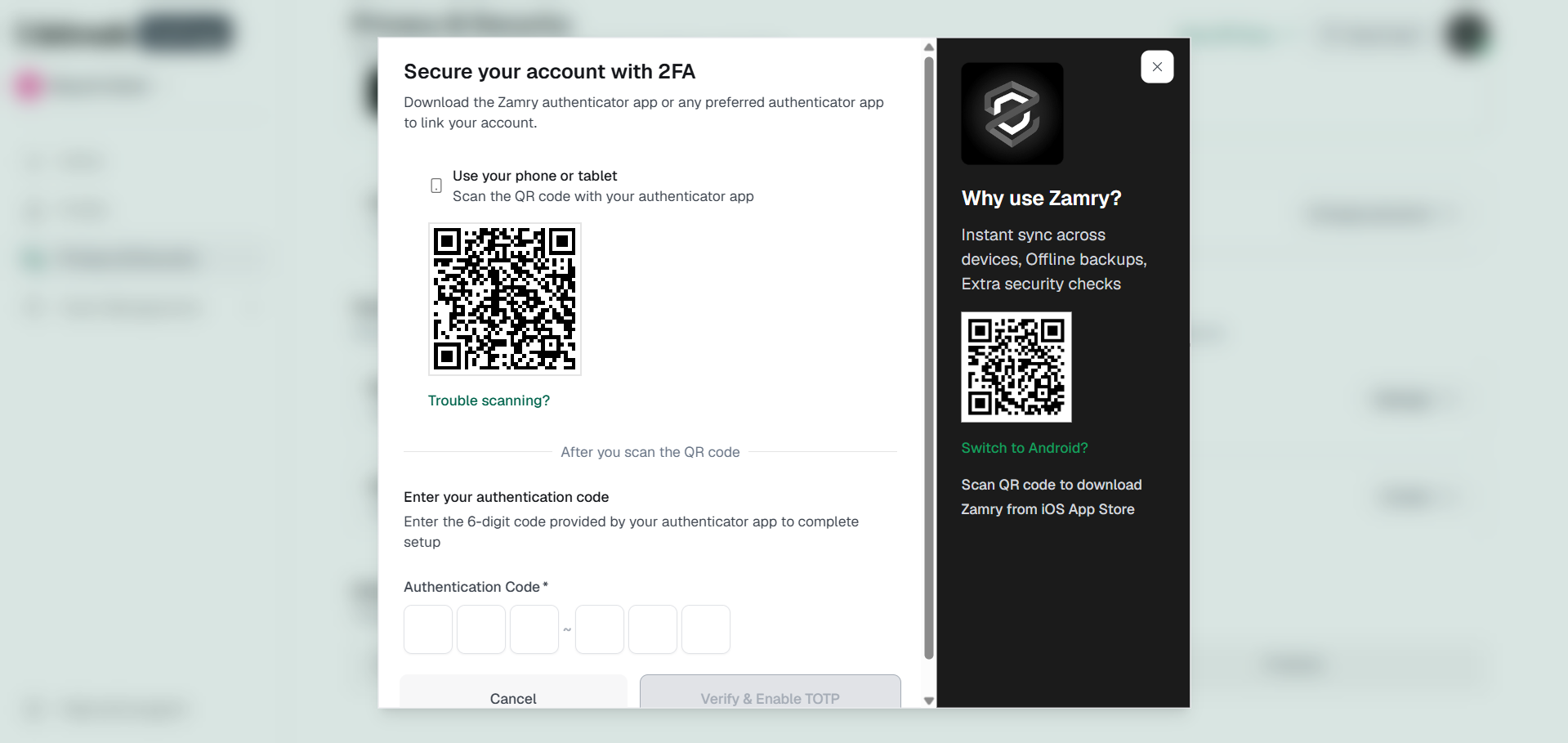
Enter the verification code to confirm setup.
Every future login will require your password plus a six-digit code from the app.
N.B: After entering your password on the login screen, you will be taken to a verification step where you enter the six-digit code from your authenticator app. Once verified, you are taken into your account. If you use a passkey instead, your device will prompt you to authenticate using Face ID, fingerprint, or screen lock at this same step.
Step 2: Set Up a Passkey
A passkey replaces your password with your device's biometric authentication: Face ID or fingerprint. It's faster and more phishing-resistant than a password because it's cryptographically tied to your physical device.
Go to Privacy and Security, select Passkey, and follow the on-device setup steps.
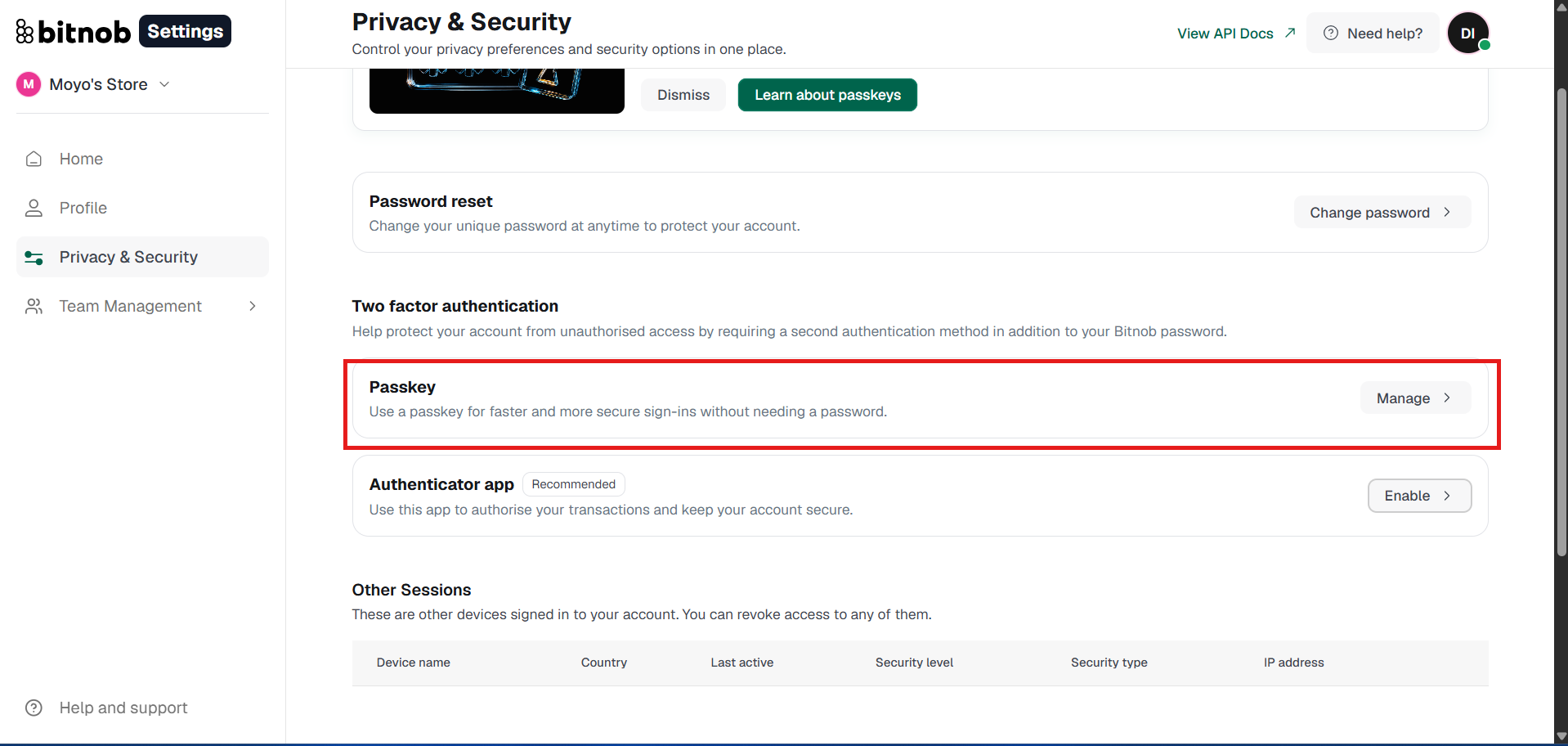
Step 3: Enable Biometric Login
If your device supports biometrics, Biometric Login lets you sign in with Face ID or fingerprint instead of typing your password. You can enable it from Privacy and Security.
Updating Your Password
Select Password in Privacy and Security to update at any time. Use a strong password that's unique to your Bitnob account.
Using Account Freeze
If you ever suspect unauthorised access, go to Privacy and Security and activate Account Freeze immediately: your account locks instantly. Then email help@bitnob.com to begin account recovery.
Related articles: